How to backup a Mikrotik router
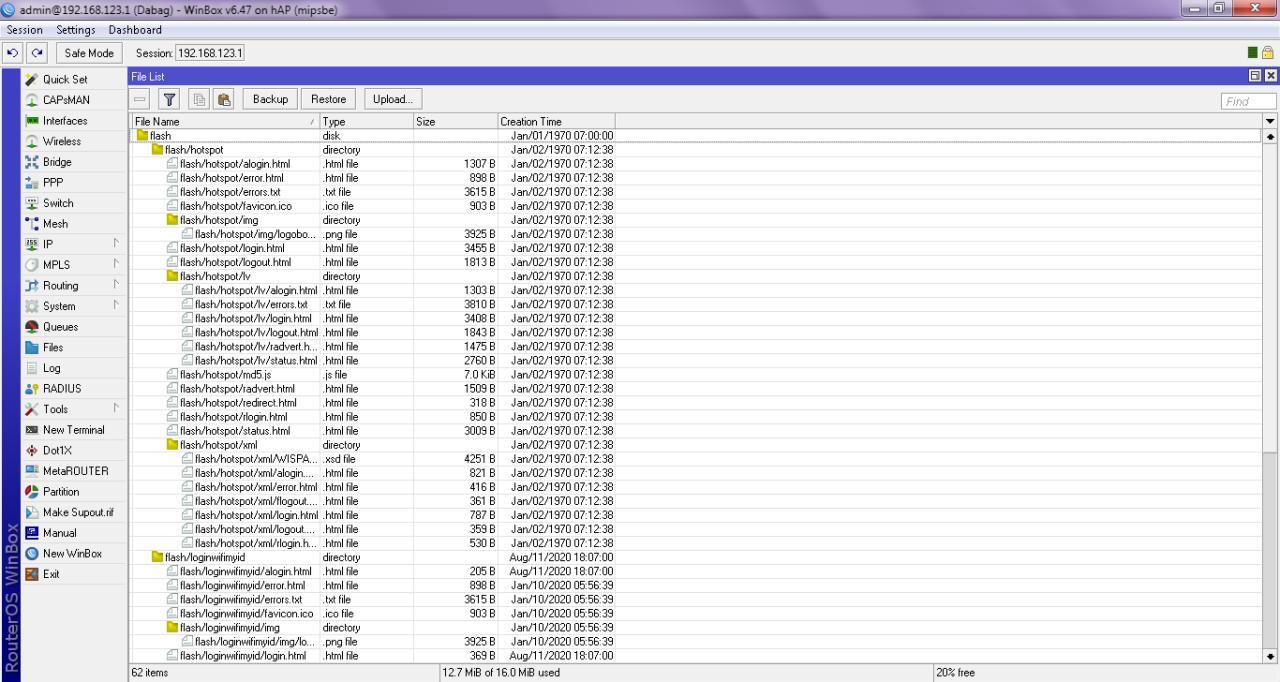
How to backup a Mikrotik router - Backing up a Mikrotik router is very important and is recommended to be done regularly to prevent unwanted incidents. There are two ways to backup a Mikrotik router
1. Using the Backup/Restore button on the Mikrotik device
- Open Winbox and access the router
- Select the files menu
- Click the backup button to perform a backup
- Or press the restore button to perform a restore
- When backing up, download the backup file and save it to another location on your PC/HDD
2. Using Export/Import
When purchasing a new router and don't want to reconfigure it, you can take the configuration from the router that was previously set up. The backup/restore function can only be performed on the same device. To do this, you can use the following export/import method on Mikrotik. How to
- Open Winbox and access the router
- Open a terminal
- Enter the command export compact file="file-name"
- To import, use the command import file-name="file-name"
- Download the export file and save it elsewhere
For information, the export/import function will not save the configuration for the MikroTik internal user account and password.
This is how to backup a MikroTik router. Make sure to backup/export before making any changes to your MikroTik device.


